Article ·
S49 solar 4G PTZ camera setup: from the box to the first alert
This solar 4G PTZ camera setup guide takes our S49 from a closed box to its first motion alert on your phone. Do the first six steps on a bench or the ground and only then climb the pole: almost every problem we hear about is easier to fix with both feet on the ground.
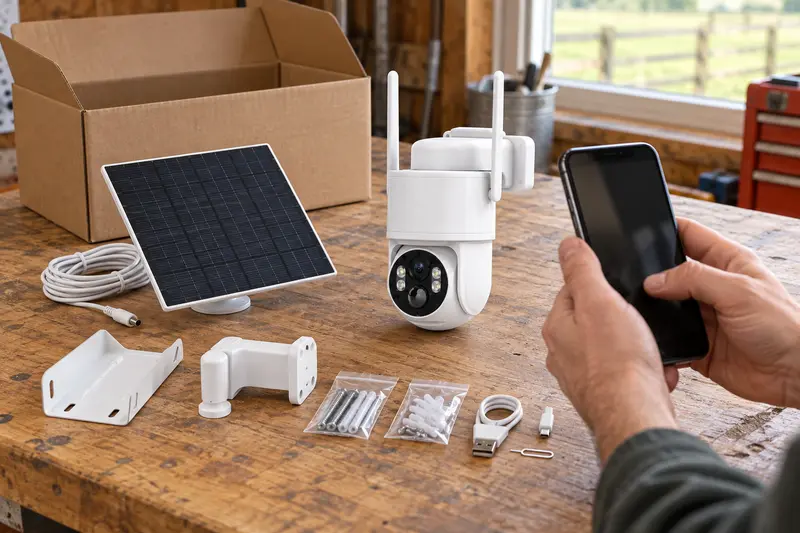
What is in the box
According to the factory specification sheet, each S49 solar 4G PTZ camera ships with the camera, a solar panel, a panel bracket, a camera bracket, two packs of screws and a charging cable. You supply a 4G SIM with data (or use the built-in eSIM) and a microSD card.
| Item | S49 figure (factory documents) |
|---|---|
| Camera size and weight | 175 × 110 × 140 mm, 509 g |
| Solar panel | 5 W, 180 × 165 × 8 mm, 266 g, 2 m cable |
| Battery | 7,800 mAh, 18650 lithium cells (about 28.9 Wh) |
| Charge by cable | About 10 hours with a 5 V 1 A charger |
| SIM | Nano SIM, or built-in eSIM |
| Storage | microSD card up to 128 GB, hot-swappable |
| App and pairing | Tuya Smart / Smart Life, QR-code pairing, no APN settings |
| Turn | 270° pan, 90° tilt |
| Night | 4 infrared + 4 white LEDs, infrared up to 15 m |
All figures from our factory catalogue and S49 specification sheet; the full list is on the solar 4G camera comparison.
Step 1: charge the battery
Charge the camera by cable before anything else, so it starts its first night with a full reserve. Leaving it on the panel alone works, but takes longer and depends on the weather.
Step 2: prepare the SIM in a phone
Put the SIM in a phone, turn off the SIM PIN, load a data bundle and open a web page with Wi-Fi off. If the phone cannot browse, the camera cannot connect. Check that the camera’s band version matches your network: we build two versions and confirm it against your network before shipping. The SIM card guide explains bands and data use.
Step 3: insert the SIM and a microSD card
Slide in the Nano SIM and the microSD card, then close and screw down the cover so rain cannot get in. Recording to the card uses no mobile data; only alerts, clips sent to the phone and live view do.
Step 4: pair it by QR code
- Install Tuya Smart or Smart Life on your phone and create an account.
- With the camera charged and the SIM in, add a device in the app by scanning the camera’s QR code.
- Wait for the app to show the camera, then open live view.
There is no APN to type. If live view does not open, go back to step 2 before suspecting the camera; our 4G camera offline fixes list the checks in order.
Step 5: format the card and set detection
- Format the microSD card in the app so recording starts cleanly.
- Turn on motion and human detection and draw an activity zone over the gate, door or pen you care about, leaving out trees and roads that move all day.
- Choose the siren if you want the camera to sound on detection; it has a built-in siren and two-way audio through its microphone and speaker.
Step 6: test the first alert
Walk in front of the camera and wait for the alert on your phone. Open it, check the clip saved to the card and try the pan and tilt. When this works on the ground, you know the SIM, the account and the camera are all fine.
Step 7: mount the panel, then the camera
The S49 has a separate panel on a 2 m cable, so the panel can go on the sunniest part of the pole or roof while the camera sits where it sees best. Our solar camera installation guide covers the details; in short:
- Fix the panel on its own bracket, facing open sky, tilted so rain runs off, with nothing shading it from mid-morning to mid-afternoon.
- Mount the camera 3 to 4 m up on its bracket, with the gate or door within about 8 to 10 m for faces and within the 15 m infrared range at night.
- Run the panel cable along the pole and leave a drip loop below the socket.
- Check 4G on a phone at the mounting point before you drill: you want 4G, not 3G or E.
Step 8: check after the first night
Next morning, open the app: the camera should be online, the battery should not have dropped sharply, and the night clips should be clear. If it went offline overnight, look at the panel first.
Selling the S49
For installers and distributors, every S49 ships with its panel, brackets and screws, and each carton is labelled with its band version and IMEI. We sell from 500 units per order, models mixed; see solar 4G camera wholesale prices.
More articles
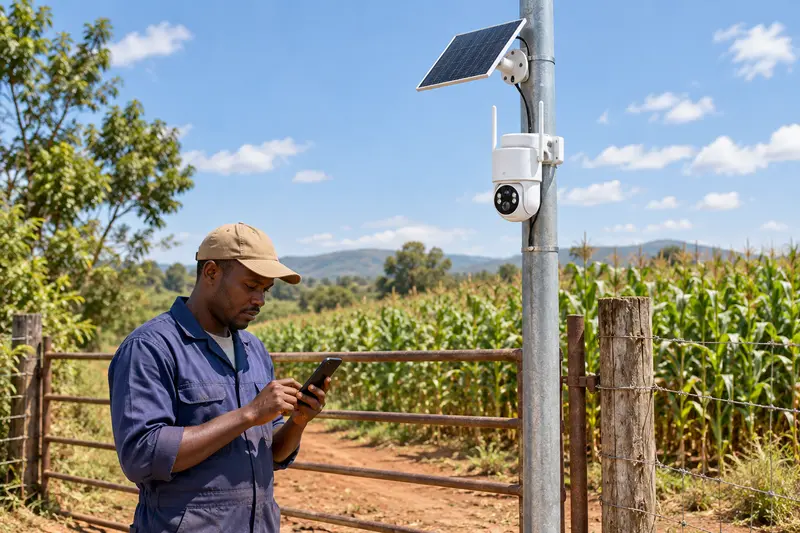
Solar 4G camera showing offline? 9 fixes, in order
4G camera offline in the app? Nine checks for solar 4G cameras in the order an installer works through them: battery, signal, SIM, bands, pairing and hardware.
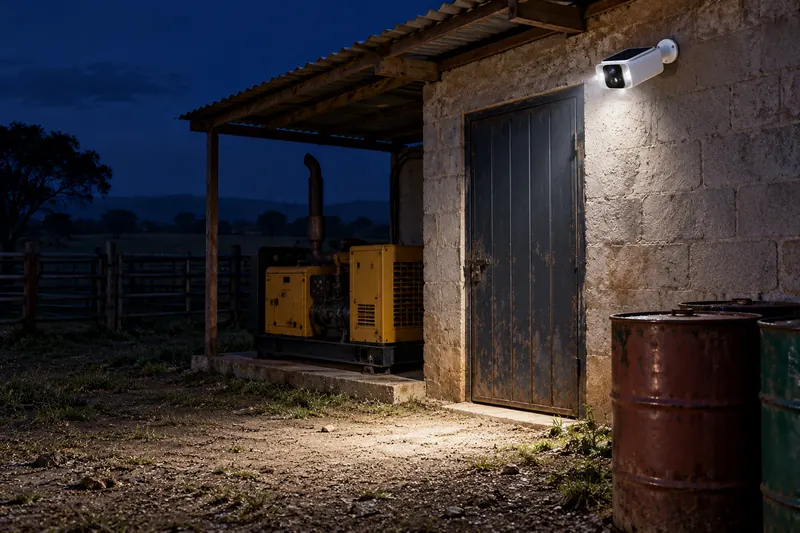
CCTV camera with solar panel: keeping watch through Nigeria’s power outages
Lagos lost power on 19 October and Enugu faces a six-day outage. Why wired CCTV goes dark in a blackout, and how a CCTV camera with a solar panel keeps recording.
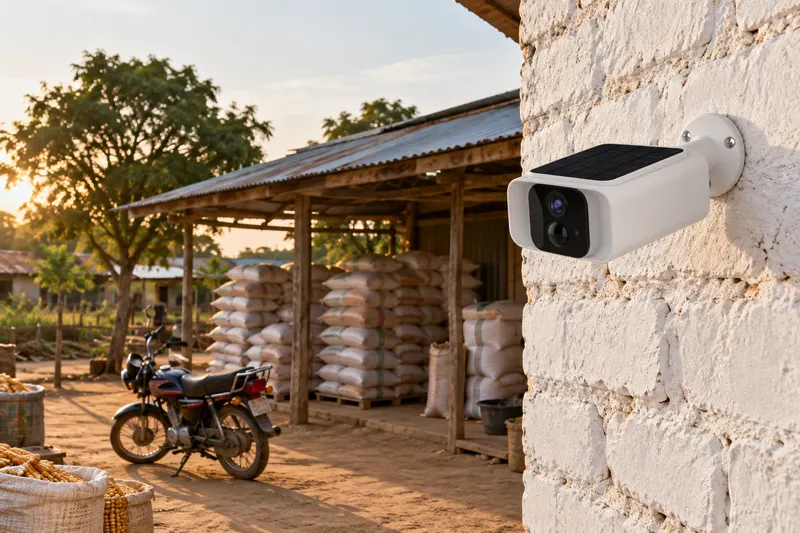
Best CCTV camera for a shop in Nigeria when the power keeps going off
Choosing the best CCTV camera for a shop in Nigeria: what to cover, which cameras keep working when the power goes, wired versus wireless, and how to compare prices.