Article ·
Solar 4G camera showing offline? 9 fixes, in order
A 4G camera offline in the app is almost never a broken camera. Nearly always it is power, signal or the SIM, and they can be checked from the ground in about the time it takes to put a ladder up. Here are the nine checks we give installers, in the order that finds the fault fastest.
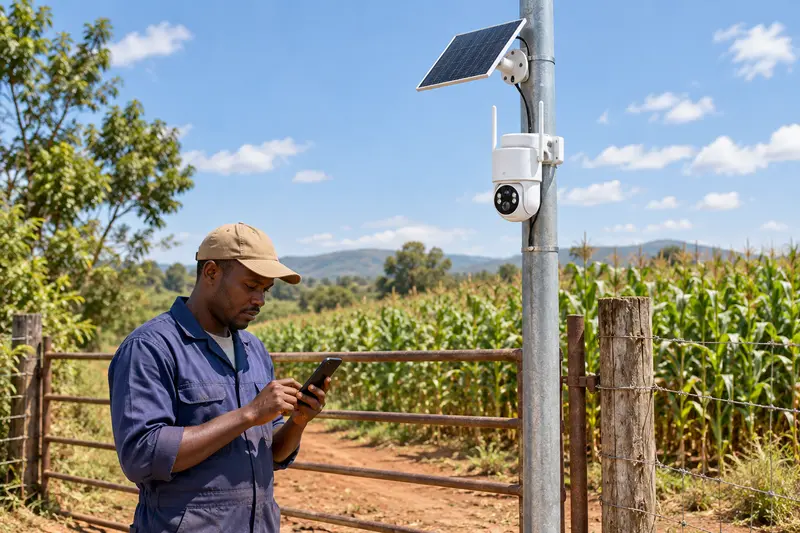
First, what “offline” means
The app shows a camera as offline when it has not heard from it for a while. The camera may still be working: our 4G models keep recording to the microSD card without a network, and you see the clips when it reconnects. Offline means one of three links is broken: power to the camera, the 4G connection, or the account it is paired to. The checks below go through them in that order.
Quick table: symptom, likely cause, fix
| What you see | Most likely cause | Check |
|---|---|---|
| Was online for weeks, then offline after cloudy days | Battery ran down | Fixes 1 and 2 |
| Goes offline every night, back in the morning | Battery too low to last the night | Fixes 1 and 2 |
| Never came online after installation | SIM, bands or pairing | Fixes 4, 5, 6 and 7 |
| Online on the ground, offline on the pole | Signal at the mounting point | Fix 3 |
| Offline after months of working fine | Data bundle or SIM expired | Fixes 4 and 8 |
1. Look at the panel
Most solar cameras that go offline have simply run out of power. Stand under the pole between mid-morning and mid-afternoon and look at the panel: no branch, roof edge or pole shadow should fall across it, and it should face open sky. A panel that has been knocked flat by wind or turned by a bird collects dirt and charges far less. Wipe off dust and droppings. Our solar camera installation guide covers direction and tilt.
2. Charge the battery by cable
If the battery is flat, the panel needs a long sunny spell to bring it back. Take the camera down and charge it by cable: the factory sheet gives about 10 hours with a 5 V 1 A charger for our 4G models. Then check the panel and battery are sized for your site with the solar panel and battery guide. Live viewing uses power much faster than waiting for alerts, so a camera watched live for an hour every evening drains sooner than the brochure suggests.
3. Check 4G at the mounting point
Stand at the foot of the pole with a phone on the same network, then hold it as high as you can. You want 4G, not 3G or E. A camera that worked in the yard can lose the signal when mounted behind a metal roof, a water tank or a hill. Moving it a few metres, or higher, often fixes it.
4. Test the SIM in a phone
Take the SIM out and put it in a phone with Wi-Fi off. If the phone cannot open a web page, the camera cannot connect either. Check three things: the data bundle is active and not used up, the SIM PIN is turned off (a camera cannot type a PIN), and the SIM has not been suspended. Some prepaid SIMs are disconnected after a period without a top-up; ask the network what its rule is. The SIM card guide for solar cameras covers data bundles.
5. Match the 4G bands
A camera only connects on a band its 4G module supports. Our factory builds two band versions: B1, B3, B7, B8, B20 and B28 for Africa, Europe and most of South America, and B2, B4, B5, B12, B13, B17 and B66 for North America and Mexico. A camera from the wrong version, or from a seller who never asked which network you use, can sit with full bars on your phone and never come online. We confirm the version against the buyer’s networks before shipping, and every carton is labelled with its band version and IMEI.
6. Seat the SIM and the antennas
Our cameras take a Nano SIM, or use the built-in eSIM. Check a Nano SIM is the right way round and fully home, and that the SIM cover is screwed shut so rain cannot get in. Screw both antennas on finger-tight: a loose antenna after a storm is a common cause of weak signal.
7. Pair it again, on the ground
If the camera never showed live view, remove it from the Tuya Smart or Smart Life app and add it again by scanning its QR code, with the phone next to the camera. Our 4G models pair by QR code with no APN settings to type. Do this on the ground and confirm live view before you climb: fixing a pairing problem at the top of a pole is slow.
8. Check the account and the network
Make sure you are logged in to the same app account the camera was paired to; a camera shared to a second phone can look offline if the share was removed. Ask whether other phones on the same network nearby have data: a mast outage takes every camera on that network offline at once.
9. Only now suspect the camera
If the panel is in sun, the battery charged, the SIM works in a phone, the bands match and the camera still will not connect, it may be a hardware fault. Note the IMEI on the carton and contact your supplier. If you bought from us, write to us through the contact form with the IMEI and what you have already checked.
For distributors: stop most offline calls before they start
- Ask every buyer which network they use, and ship the matching band version.
- Tell them to test the SIM in a phone and pair the camera on the ground first.
- Pre-charge stock before handing it over, so the first night is not on a cold battery.
We build our solar 4G PTZ camera and the rest of the range for importers, distributors and installers, from 500 units per order. See solar 4G camera wholesale prices.
More articles
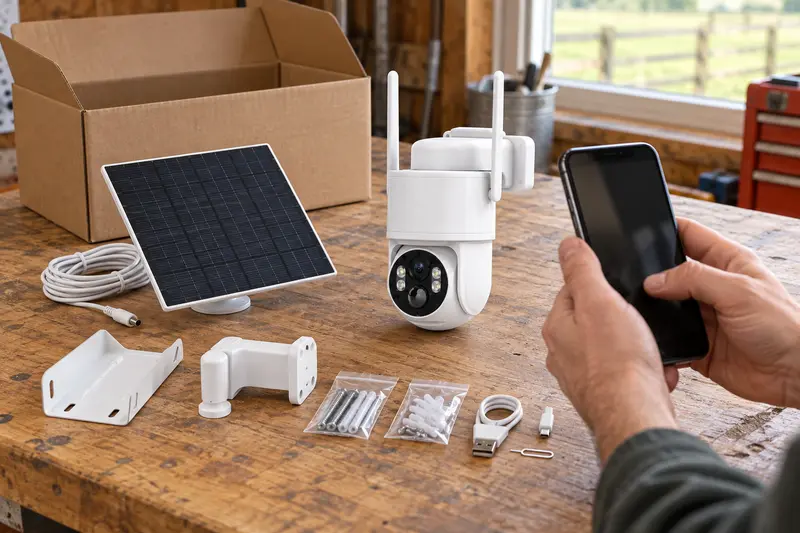
S49 solar 4G PTZ camera setup: from the box to the first alert
Solar 4G PTZ camera setup for the S49, step by step: what is in the box, charging, SIM and microSD, QR pairing, the first alert, then mounting the panel and camera.
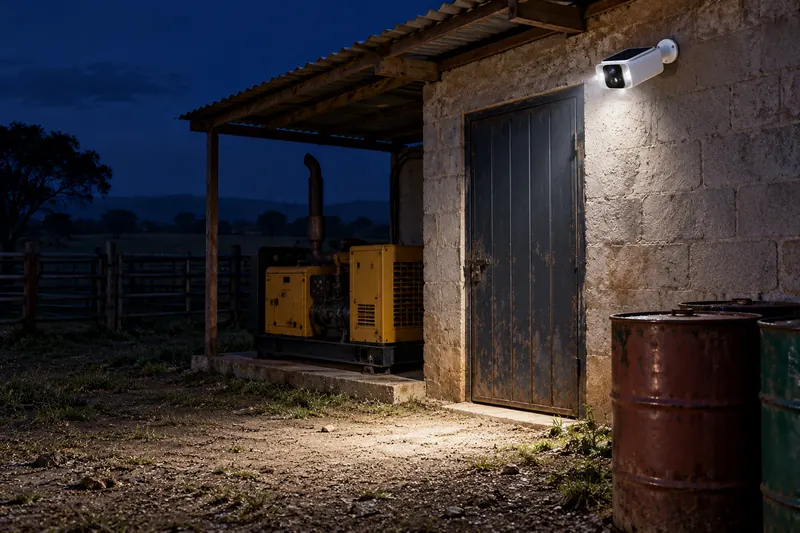
CCTV camera with solar panel: keeping watch through Nigeria’s power outages
Lagos lost power on 19 October and Enugu faces a six-day outage. Why wired CCTV goes dark in a blackout, and how a CCTV camera with a solar panel keeps recording.
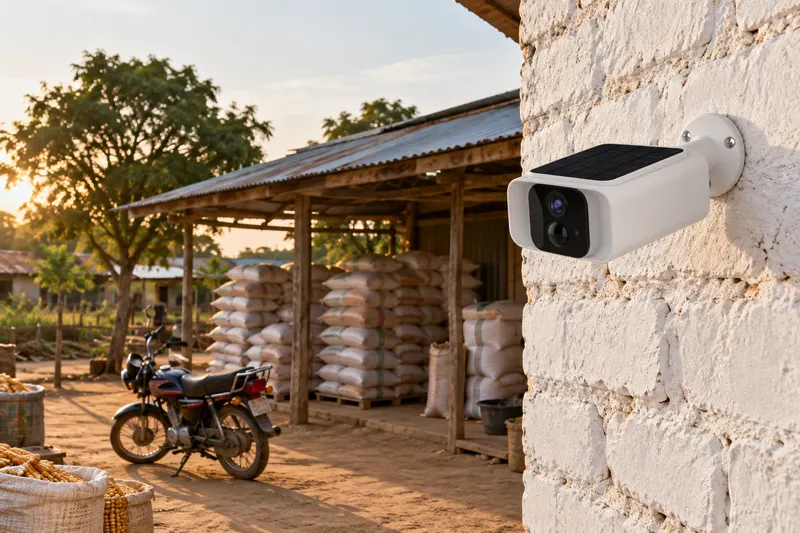
Best CCTV camera for a shop in Nigeria when the power keeps going off
Choosing the best CCTV camera for a shop in Nigeria: what to cover, which cameras keep working when the power goes, wired versus wireless, and how to compare prices.